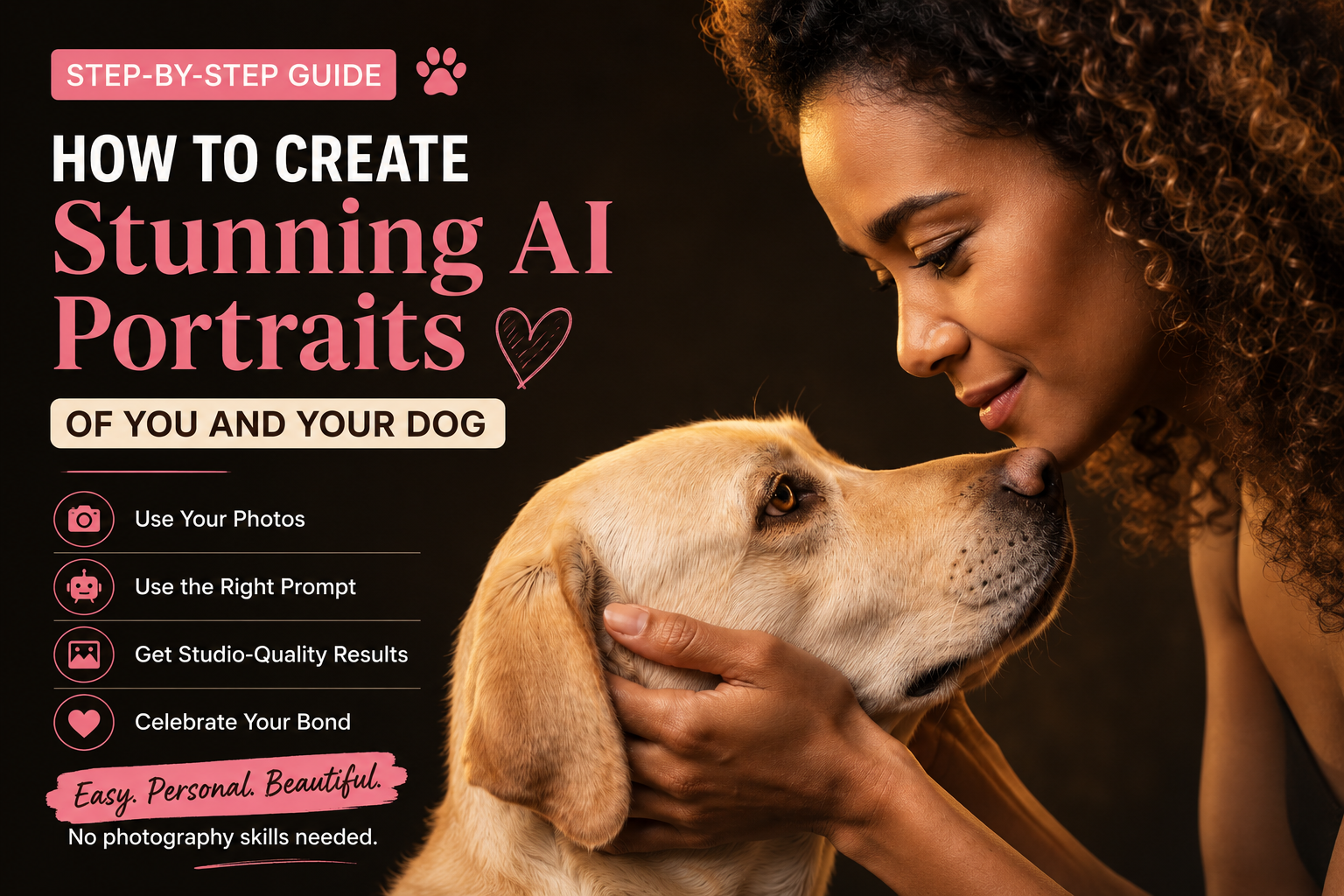
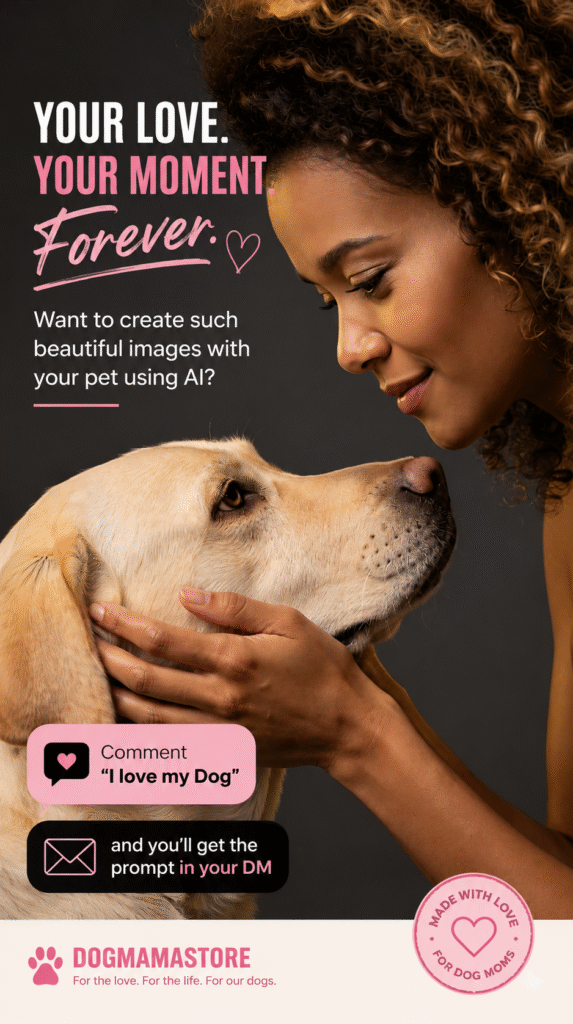
Would you love to create a warm, professional-looking portrait of you and your dog without arranging an expensive studio photoshoot?
You can try it using an AI image tool such as ChatGPT or Google Gemini. You only need:
- A clear photo of yourself
- A clear photo of your dog
- The special prompt provided below
- A few minutes of patience
This guide explains every step slowly and simply, even if you have never used an AI image tool before.
Before You Begin
Choose a photograph in which both you and your dog can be seen clearly.
For the best result:
- Your face should not be blurry or covered.
- Your dog’s face and eyes should be visible.
- Use a photograph with good lighting.
- Avoid sunglasses, strong filters or very dark shadows.
- A photo showing your upper body and your dog is usually easier for AI to understand.
- Only upload photographs you have permission to use.
AI-generated images may not preserve every facial detail perfectly. Look carefully at the finished picture, especially the eyes, hands, fingers, dog’s markings and facial features.
Option 1: Create the Portrait Using ChatGPT
ChatGPT allows you to upload a photograph by selecting the plus button near the message box or by dragging the image into the conversation. You can then ask ChatGPT to create or edit an image using your instructions. (OpenAI Help Center)
Step 1: Open ChatGPT
Open the ChatGPT website or app and sign in to your account.
Step 2: Start a New Conversation
Select New chat so that you begin with a clean conversation.
Step 3: Upload Your Photograph
Look beside the message box for the plus sign, attachment button or photo symbol.
Select it and choose your photograph.
On a computer, you may also be able to drag the photograph directly into the message box. (OpenAI Help Center)
Wait until you can see the photograph attached to your message.
Step 4: Copy the Prompt Below
Press and hold the prompt on a phone, or highlight it with your mouse on a computer. Then select Copy.
Step 5: Paste the Prompt
Paste the complete prompt into the message box underneath your uploaded photograph.
Step 6: Send the Message
Select the arrow or Send button.
ChatGPT will begin creating the new portrait. Image generation can take a little time, so do not close the page while it is working.
Step 7: Check the Result Carefully
Look closely at:
- Your face
- Your dog’s face and markings
- The number of fingers
- The position of both hands
- Your dog’s eyes, ears and nose
- Any collars, tags or accessories
Step 8: Ask for a Correction
When something looks wrong, continue in the same conversation and write:
Please correct the hands and fingers. Keep the human face and the dog’s face as close as possible to the uploaded photograph. Do not change anything else.
You may need to try more than once before receiving a result you love.
Option 2: Create the Portrait Using Google Gemini
Gemini can accept an uploaded image and generate or edit images using written instructions, although availability may depend on your account, age, device and region. (Google Support)
Step 1: Open Gemini
Open the Gemini website or Gemini app and sign in with your Google account.
Step 2: Begin a New Chat
Start a fresh conversation.
Step 3: Upload Your Photograph
Look for the plus sign, paperclip or image-upload button near the message box.
Select the photograph containing you and your dog.
Step 4: Paste the Prompt
Copy the full prompt from this article and paste it into the text box.
Step 5: Submit the Request
Select Send or Submit.
Gemini should use your uploaded photograph as a reference while creating the new portrait. Google’s instructions also allow users to upload an image and describe the desired changes in ordinary language. (Google Support)
Step 6: Review the Image
Check the finished portrait carefully. Pay particular attention to your identity, your dog’s markings and the hands.
When a correction is needed, write:
Please try again. Keep both faces closer to the uploaded photograph. Correct the hands so that there are five natural fingers on each visible hand. Keep the same lighting, pose and background.
Copy This AI Portrait Prompt
Please use the attached photo of the person and the pet as the absolute reference.

Keep the human face and the dog's face exactly as they are in the photo. Do not intentionally change, alter or modify their facial features, identity, expression, colouring or distinctive markings.

Create a professional, high-end studio portrait in which the owner’s hands are anatomically correct and naturally cupping the dog’s face. The owner is looking down lovingly into the dog’s eyes, and the dog is looking back at the owner.

Preserve both faces and all recognisable features from the reference photograph as closely as possible.

Use a professional studio-lighting setup with soft, warm 3200K tungsten lighting that casts an intimate golden glow across their faces. Add a subtle fill light to soften harsh shadows and a crisp rim light tracing their silhouettes to create depth.

Photograph the portrait as though it were shot using a 105mm portrait lens at an f/2.8 aperture. Use tack-sharp focus on the human’s eyes and the dog’s eyes, with a naturally softened background.

Use a clean, solid dark-bronze studio backdrop that complements the warm lighting.

Create a deep emotional connection between the owner and the dog. Include realistic skin texture, natural skin pores, highly detailed pet fur and authentic photographic detail.

The finished result should look hyper-realistic, cinematic, elegant, intimate and timeless.

Important requirements:
- Five natural fingers on each visible hand
- Anatomically correct hands
- No extra fingers
- No fused or distorted fingers
- No duplicated hands
- No distorted facial features
- No changes to the dog’s breed or markings
- No cartoon appearance
- No painting
- No illustration
- No obvious digital-art style
- No text, logos or watermarks
- Vertical 9:16 portrait composition
Using Two Separate Photographs
You may not have one photograph containing both you and your dog. That is okay.
Upload:
- One clear photograph of yourself
- One clear photograph of your dog
Then add this sentence at the beginning of the prompt:
The first photograph is the reference for the human, and the second photograph is the reference for the dog. Combine them naturally into one studio portrait while preserving their individual appearance.
For better results, select photographs taken from similar angles. For example, avoid using a side-profile photograph of yourself with a straight-on photograph of your dog.
How to Improve a Result That Does Not Look Like You
AI may occasionally create a beautiful portrait that does not sufficiently resemble the original person or dog.
Continue in the same conversation and use one of these correction instructions.
When the human face is incorrect
Please regenerate the image and match the human face more closely to the uploaded reference. Preserve the eye shape, eyebrows, nose, lips, face shape, skin tone and hairstyle. Do not beautify or redesign the face.
When the dog looks different
Please match the dog more closely to the reference photograph. Preserve the breed, muzzle shape, ear shape, eye colour, coat colour, facial markings and fur pattern.
When the hands look strange
Please correct both hands. Show only two human hands, with five natural fingers on each visible hand. The hands must gently support the sides of the dog’s face without covering the dog’s eyes or muzzle.
When the image looks like a painting
Please make the result look like a genuine professional studio photograph. Use realistic skin, natural pores, individual strands of fur, realistic camera depth of field and photographic lighting. Do not use an illustrated or painted style.
When you want more space around the subjects
Please zoom out slightly and leave comfortable space above the person’s hair and around the dog’s body. Keep the vertical 9:16 composition.
Helpful Tips for Better Results
Use a Clear Reference Photo
The clearer the original photograph, the more information the AI has to work with.
Keep Your First Request Simple
Upload the image and paste the prompt. Do not add several unrelated instructions at the same time.
Correct One Problem at a Time
When the face is good but the hands are wrong, ask only for the hands to be corrected. Requesting a completely new image may also change the parts you already liked.
Do Not Expect Perfect Identity Preservation
AI image generators create a new image rather than simply placing a photographic filter over your original. Therefore, an exact facial match cannot always be guaranteed.
Try More Than One Version
Generate several versions and select the one that best captures the relationship between you and your dog.
Protect Your Privacy
Avoid uploading photographs containing visible addresses, identity cards, vehicle numbers, school names or private documents. Crop out anything you do not want included.
A Simple Reminder
You do not need to understand photography terms such as “105mm lens” or “3200K lighting.” Those details are included for the AI. Your only job is to:
- Upload a clear photograph.
- Copy the prompt.
- Paste it into ChatGPT or Gemini.
- Send the message.
- Check the result and request small corrections.
With a good reference photograph and a little patience, you can create a warm portrait celebrating the special bond between you and your dog.